Environment variables handle or control the flow of running processes in the operating system. Environment variable has a value and a variable which is using some particular application. As a example in Java program, Operating system consist a variable call "PATH" and the value is the path of java's bin directory. Likewise most of the programs (actually running processes) are using Environment Variables for their various types of activities.
We can easily view already stored Environment Variables using Terminal.
Display Currently defined variable list.
printenv
Display Currently defined variable list.
echo $PATH (display the program search path)
using env
You can run a command in a modified version of the current environment (see man page) also it is using to display whole environment variables list. Just typeenv also It can use for delete or add a variable temporally.
Set Environment variables.
Ex. Set Java bin PATH
export PATH=$PATH:/usr/java/jdk1.5.0_07/bin
Erasing Environment Variables.
You can do it easily giving null value
export PATH=
Using above commands you can handle environment variables temporally. If you want to handle Environment Variables Permanently you want to know how they are stored in your architecture.
Environment Variables are stored in two difference ways called Session Specific and System Specific.
1. Session Specific Variables. These are mostly stored in the specific hidden files/scripts in your home directory. Specially we can identify 3 ways to store Environment Variables.
~/.profile
~/.bash_profile or ~/.bash_login
~/.bashrc
~/.bash_logout
2. System Specific Variables These Variables are using whole System and affected all users/sessions in runing time.
The Java Mail APIprovides a platform-independent framework to develop mail and messaging applications in Java technology. Java Mail API is also protocol-independent making it more useful. You can use many different protocols to work with mails and messages.
Java mail api is designed to provide functionality such as read, compose and send from within your java programs.
Possible Uses
1.Send Email from any type of java application
2.Composing, reading and sending electronic mail
3.Send Email from java stored procedure.
4.Create a GUI Email client.
5.Dealing with sending and receiving attachments with Email.
6.To search for messages.
How does Email works
Email client Program sends the message to Emailserver.
Email server contact to the Recipient’s Email server provided in the Email address.
Email server checks that user name is valid or not.
If found valid send email to the address’s email server.
When recipient log on his mail account, gets his Email.
Mailing protocols
Basically, a protocol represents standard method used at each end of a communication channel, in order to properly transmit information.
Generally four protocols are used to send and receive Emails:
1. Open netbeans ide. 2. Create a new project. File->New Project. Select “General” and on the right pane, choose “Java Application”. 3. Click next. Give the project name as “TwoMinBrowser” and “Finish”.
Your project is ready. Go to java.net and download JDIC (JDesktop Integration Components). It doesn’t come as a part of Java SE 5.0 or J2SE 4.0. Good news is that, it is a part of Mustang (Java SE 6). Unpack the JDIC zip file and you will find a “jdic.jar”.
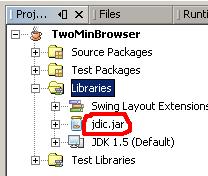
Click on the Projects tab in the IDE (Window->Projects), expand TwoMinBrowser. Now expand “Libraries” section, right click on it and select “Add JAR/Folder”. Navigate to the “jdic.jar” and add it. The projects tab should be like the image on the left.
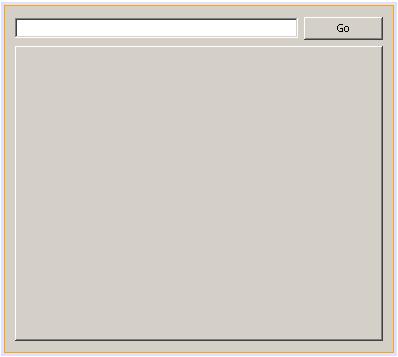
Expand “Source Packages”, right click on “twominbrowser” and select “New->JFrame Form”. Give it a name and click “Finish”. From the Palette, drag n drop a JPanel. Resize it to fit the full form. Now add a JTextField (txtUrl), a JButton and JTabbedPane (browPane). The final form should be like the screenshot on the right. Click on the image to see a bigger one.
Double click on the JButton (“Go”) or right click on it and select Events->Action->actionPerformed. Write the following code. Press Alt+Shift+F to resolve unresolved classes. Press F5. Should you get any errors, delete the Main.java from the “Source Packages” node and press F5 again. It should now compile and execute.
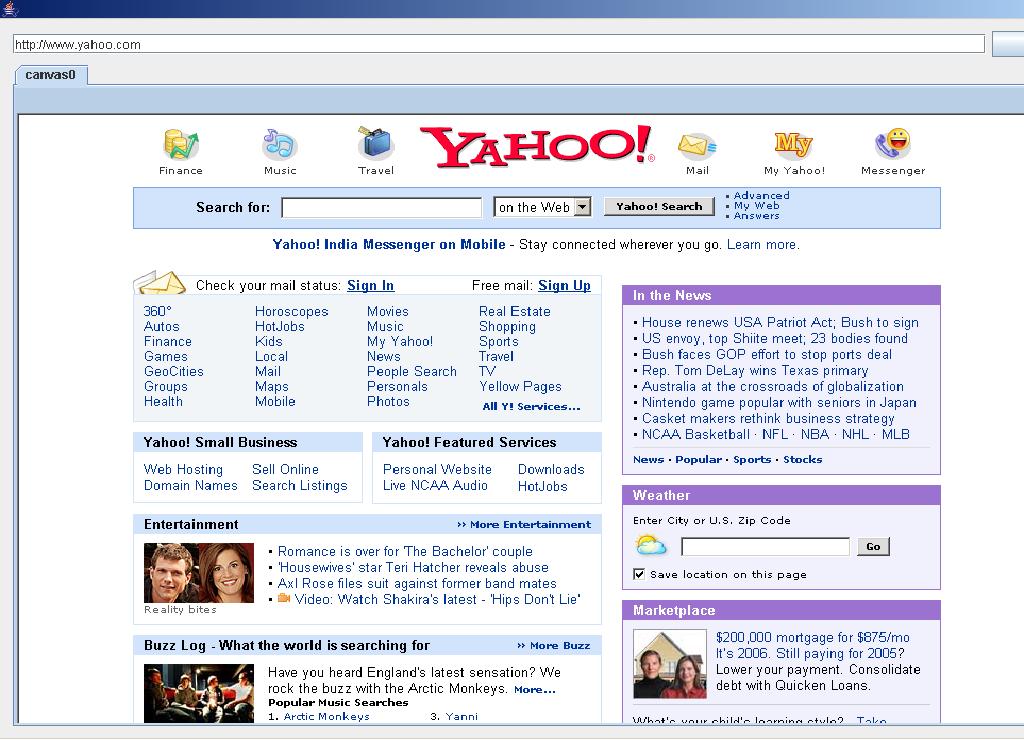
Type in a proper url at the textbox and click on “Go”. Our TwoMinBrowser will work. This is the result of display of yahoo page in our browser. The same code will work in linux also.
The days of cowboy coding are long gone at most organizations, replaced by a renewed interest in generating quality software. Continuous integration (CI) testing is a vital component in the practice of agile programming techniques that lead to high-quality software.
Continuous integration (CI) is a software development process that promotes the following principles:
• Maintain a single-source repository
• Automate the build
• Make your build self-testing
• Everyone commits every day
• Every commit should build the mainline on an integration machine
• Keep the build fast
• Test in a clone of the production environment
• Make it easy for anyone to get the latest executable
• Everyone can see what's happening
• Automate deployment
i gone through a lot of web site and i have seen many CI tool for automated build process. i got it some good feature in hudson over the buildbot, Continuum and CruiseControl?.
The basic principle is to regularly use the ps command to get a process list, then to filter is using grep, then filter using grep again to remove the line from the process list which was filtering for processes ('grep httpd' contains the phrase httpd so it gets included in the initial filter). Finally use the wc command to do a count of the result. This theory produces the following line of code which you can run on your system…
Get a process list. The 'a' causes a full process list for the current terminal. The 'u' causes it to be user-oriented. The 'x' causes it to be for the current user only.
grep http
This goes through the list produced and reduces it to lines containing only the word 'http'.
grep -v "\(root\|grep\)"
Unfortunately for the previous process, it also contains one of the words it's filtering for - this means it appears as one of the processes. Root also owns one of the Apache processes (the parent one maybe?). We want to filter out these two so we use grep as we did before but filter out for the lines containing grep and root. The '-v' option tells grep to make this an inverse-filter.
wc -l
This is a really simple and yet useful function. It's a word counter and the '-l' (thats a lowercase L) option tells it to count newlines which is what separates our process in the list!
By running the above command you will get a number returned on the terminal. This tells you how many apache processes are currently running on your system. A slight variation on the initial 'ps' command will give you some pretty usefull information…
This version will very nicely list you out a table of running apache processes (not caused by root or grep) with only 4 columns - Process ID, Username (of the process owner), Size (in Kb - I THINK) and the Command that was run. This means you can quickly see how much actual RAM your webserver is using for apache!
#!/bin/bash
THRESHOLD=100 ADDRTO=karthik@mysite.com" SUBJECT="Apache Process Check" LOCKFILE="/tmp/apache_process_check.lock" LOGFILE="/var/log/apache_processes.log"
NUMHTTPD=`ps aux |grep http |grep-v"\(root\|grep\)"|wc -l`
if[[${NUMHTTPD}-gt${THRESHOLD}]]; then if[!-e"${LOCKFILE}"]; then echo"The number of currently running httpd threads is ${NUMHTTPD}."| mail -s"${SUBJECT} - Above Threshold"${ADDRTO} touch${LOCKFILE} fi else if[-e"${LOCKFILE}"]; then rm-f"${LOCKFILE}" echo"The number of currently running httpd threads is ${NUMHTTPD}."| mail -s"${SUBJECT} - Below Threshold"${ADDRTO} fi fi
This, quite simply, will log the apache process. If the threshold count is breached (in this case, 100) then it will create a lock file and email the address specified letting the admin know that they're quite close to their limit. The lock file gets deleted when the process count drops below the threshold again.